Intune LAPS Setup
In this post, I’ll show you how I set up Windows LAPS (Local Administrator Password Solution) using a configuration profile in Microsoft Intune. The settings below make sure local admin passwords are rotated automatically and stored securely.
Profile Settings Overview
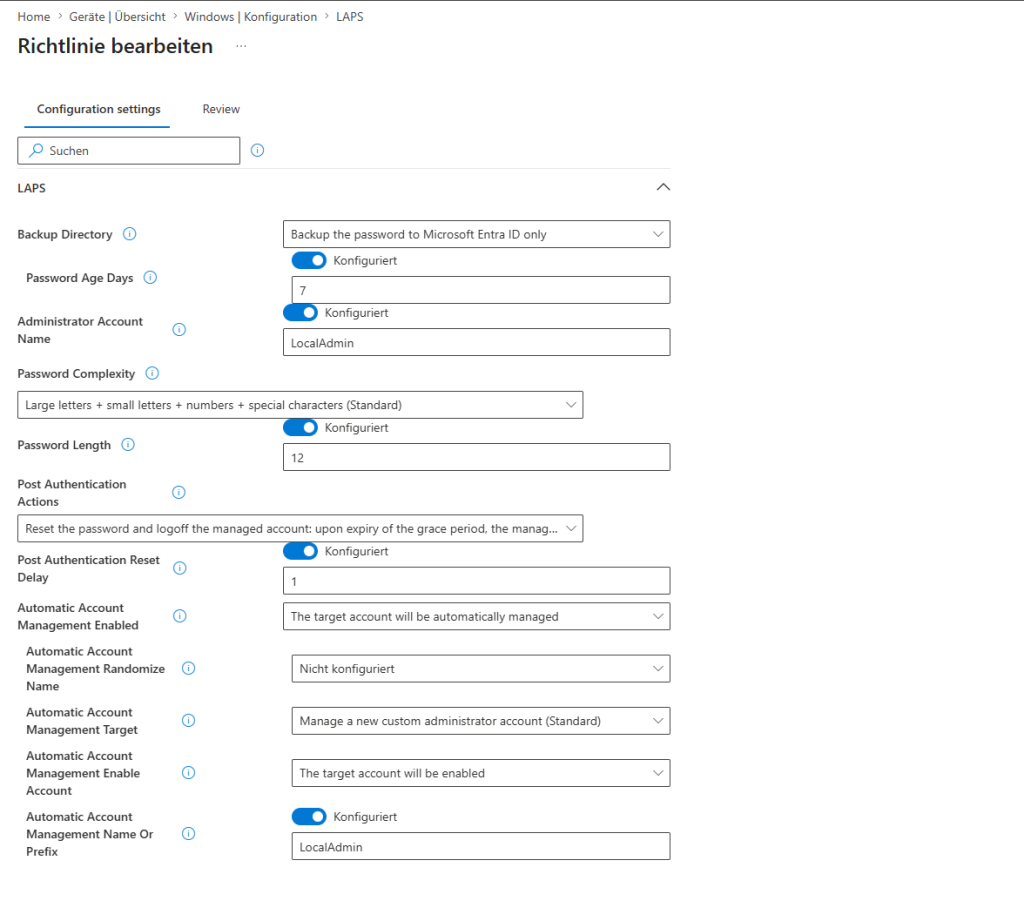
- Backup directory: Only backs up the password in Azure AD
- Password age in days: 7
- Admin account name: LocalAdmin
- Password complexity: Uppercase and lowercase letters, numbers and special characters
- Password length: 12
- Post-authentication actions: Reset password and log off managed account – after the activation period expires, the managed account’s password is reset and all interactive sign-in sessions using the managed account are ended
- Post-authentication reset delay (days): 1
- Automatic account management enabled: Yes – the target account is automatically managed
- Random name (Automatic account management): No – the target account name does not use a random numeric suffix
- Name or prefix of automatic account management: LocalAdmin
- Enable account for automatic account management: Yes – the target account is enabled
- Target for automatic account management: Manage a new custom administrator account
Screenshots from the Intune Admin Center
Here I’ll add screenshots from the Intune Admin Center that show the configuration profile and the individual settings.